![DecisionLensLogo-standard.svg]](https://supporthub.decisionlens.com/hubfs/DecisionLensLogo-standard.svg)
Per FedRAMP Rev 5 mandates effective March 1 2026, this Secure Configuration Guide will help customers securely configure their Decision Lens environment.
How to securely access, configure, operate and decommission top-level administrative accounts that controls enterprise access to Decision Lens
Access
-
After being provisioned an instance or working with the DL Team to provision the instance (Self-Hosted or On-Prem), a small set of users will be added and the GROUPADMIN role will be assigned as necessary. The users will be able to login using one of the following authentication methods based on a specific setup per customer:
- DLI - Decision Lens Identity, Username and Password with the option to configure Multifactor Authentication
- SSO, CAC or PIV - Single Sign On, Common Access Card or Personal Identity Verification
- Upon logging in, a User will see any portfolios they have been added to. If they have not been added to any portfolios, they will see a blank page and can create portfolios or wait until they are added to the necessary portfolios to begin their work in Decision Lens.
Configure
-
After being provisioned an instance or working with the DL Team to provision the instance (Self-Hosted or On-Prem), the first users added will be given Admin Console permissions. The role needed for Admin Console permissions, is noted in the database as role=GROUPADMIN.
Non-privileged user roles are noted as role=PARTICIPANT in the database. - SSO Customers - By Default, SSO self enrollment is set to FALSE, this means Users need to be Invited/Added to the instance via a portfolio invite or instance invite. This allows for more control of who has access to your Decision Lens instance.
SSO_SELF_ENROLLMENT_ENABLED=false
If you would like Users to be able to self-enroll without needing to be Invited/Added, the necessary change in the database is to make
SSO_SELF_ENROLLMENT_ENABLED=true
Operate
- After being provisioned an instance or working with the DL Team to provision the instance (Self-Hosted or On-Prem), the first users added will be given Admin Console permissions. The role needed for Admin Console permissions, is noted in the database as role=GROUPADMIN
- Admin Console permissions allow a user to navigate to the Admin Console by going to the Admin Console via URL
i.e. <customerURL-dlx.decisionlens.com/admin-console> OR
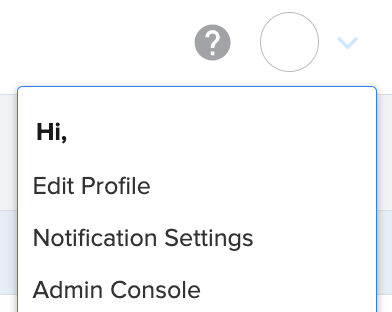
Clicking on the Avatar icon with your initials to the top right > Admin Console
- From there, the Group Admin can view all People in the instance and all relevant details regarding their Status (Active, Locked) with the ability to Lock Out or Unlock users, as well as Email and Last Login. The Group Admin can also see what portfolios any User is a part of and their role in that portfolio. The Group Admin can view all Portfolios in the instance and all relevant details regarding which Users are in the portfolio, the total # of users in any portfolio and when it was last updated.
- The Group Admin can also use the "Invite People" button to add new Users who don't necessarily need to be in a portfolio just yet.
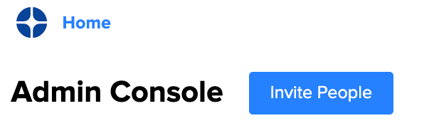
- Decision Lens SaaS customers: Any unregistered DL User that is Invited, will get an email to register.
-
- Decision Lens SaaS customers using SSO or CAC or PIV: Any unregistered DL User that is Invited will get an email to register but the login credentials to Decision Lens will be configured using the organizations' setup with SSO, CAC or PIV credentials.
- Self-Hosted or On-Prem customers: Access after being added to the instance is managed on the customer's side
- Decision Lens SaaS customers using SSO or CAC or PIV: Any unregistered DL User that is Invited will get an email to register but the login credentials to Decision Lens will be configured using the organizations' setup with SSO, CAC or PIV credentials.
Decommission
-
If top-level Administrative personnel leave and their Decision Lens account needs to be decommissioned or restricted, you can use the Lock Out feature in Admin Console as a Group Admin. This will prevent access to Decision Lens and can only get access again after being Unlocked.
Security Related Settings
- After being provisioned an instance or working with the DL Team to provision the instance (Self-Hosted or On-Prem), the first users added will be given Admin Console permissions. The role needed for Admin Console permissions, is noted in the database as role=GROUPADMIN.
Non-privileged user roles are noted as role=PARTICIPANT in the database.- Security implication: Administrators should ensure that the GROUPADMIN role is given only to the Users who need it for their role and function.
- SSO Customers - By Default, SSO self enrollment is set to FALSE, this means Users need to be Invited/Added to the instance via a portfolio invite or instance invite. This allows for more control of who has access to your Decision Lens instance.
SSO_SELF_ENROLLMENT_ENABLED=false
If you would like Users to be able to self-enroll without needing to be Invited/Added, the necessary change in the database is to make
SSO_SELF_ENROLLMENT_ENABLED=true- Security implication: Administrators should evaluate if having self enrollment is necessary before enabling it. If it is necessary, User lists should be monitored and the need for self-enrollment should be re-evaluated continuously.